[ Gaming and streams ]

From long stream recordings to tight vertical clips

Streams usually have a webcam in one corner of the screen. A centre crop loses either the webcam or the game. VimeoClip separates the two and rebuilds them for a vertical frame.
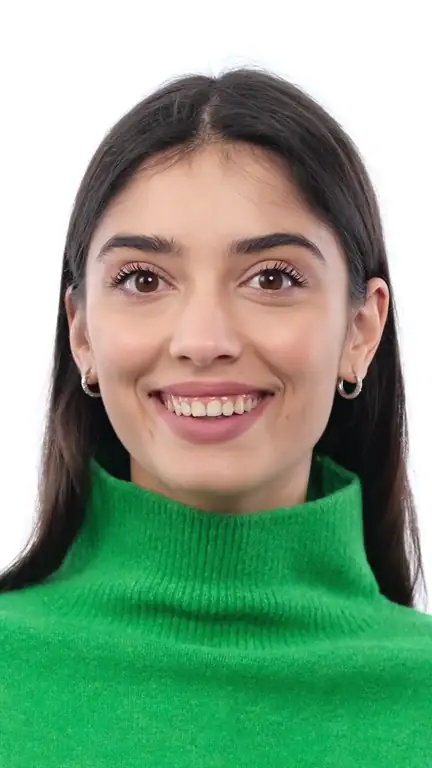
Talking to camera · Illustration
Talking to cameraIllustration
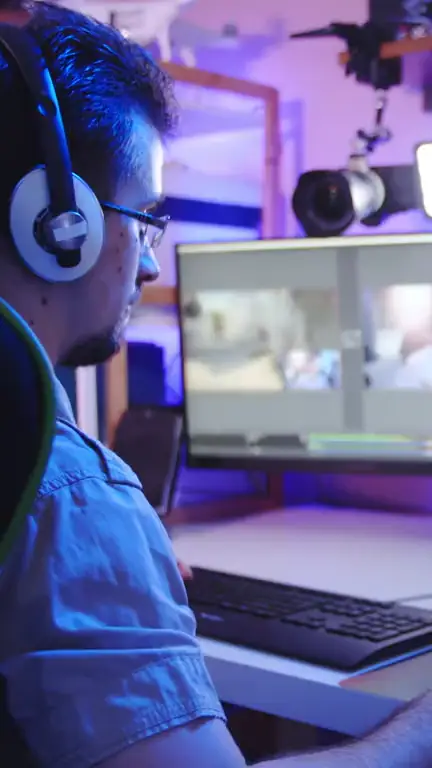
Game stream · Illustration
Game streamIllustration
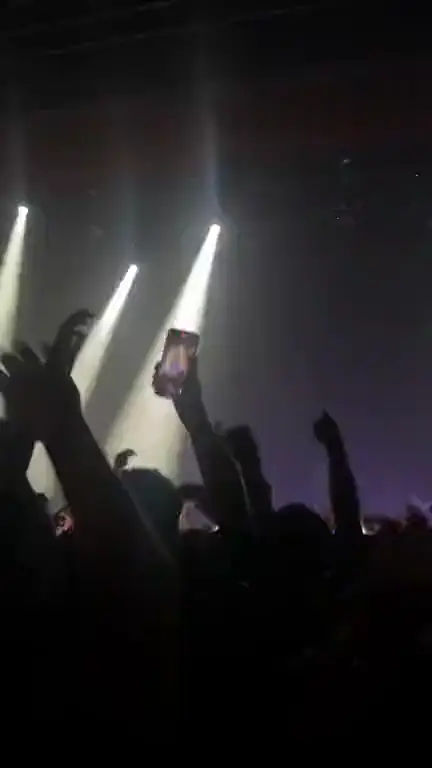
Concerts and events · Illustration
Concerts and eventsIllustration
Illustration (stock video), not VimeoClip output · Storyblocks.

Game streams, events, talking to camera

Stock footage from Storyblocks, to show the kinds of video you can bring. These are illustrations, not clips VimeoClip made.

  • Game stream · Illustration
    Game streamIllustration

    Game stream

    Illustration (stock video), not VimeoClip output · Storyblocks

  • Concerts and events · Illustration
    Concerts and eventsIllustration

    Concerts and events

    Illustration (stock video), not VimeoClip output · Storyblocks

  • Talking to camera · Illustration
    Talking to cameraIllustration

    Talking to camera

    Illustration (stock video), not VimeoClip output · Storyblocks

From recording to clips

Five steps, most of them a click in the dashboard.

  1. Bring in the recording

    Upload a file, paste a YouTube link, or paste a public link that yt-dlp can read.

  2. Choose the Gaming genre

    The dashboard switches the layout to Stream / Game. If you were on 16:9, the ratio returns to 9:16.

  3. Let the layout separate the webcam

    The layout finds the person in the corner, moves the webcam to the top band, zooms in on the main character in the lower band and follows the movement.

  4. Pick a shorter length

    The Gaming preset uses 30–59 seconds and also looks for moments that run back to back. A job with no length set uses about 15–40 seconds for gameplay, shorter than the talk-based genres.

  5. Review and download

    Clips are ranked by score with the strongest first. Watch them and download the ones you want to keep.

What goes with it

Captions

Word-by-word captions keep viewers with you when the sound is off.

See captions

Editor

Adjust cuts, add text and music. An admin enables the editor.

See the editor

Scheduling

Send clips to YouTube, TikTok and Instagram. Needs an Upload-Post key.

See scheduling

Limits to know about

  • Moment selection relies mostly on speech. Recordings with commentary give closer results than recordings with game audio alone.
  • A video with almost no speech is analysed from its picture. That needs a model that can read images, and with Gemini the source file is uploaded to Gemini.
  • The layout has to find a person in a corner of the frame. A recording with no webcam uses the plain frame.
  • The zoom step assumes the main character sits in the middle of the screen. With other kinds of game, review the clip before posting.
  • Each job uses credits based on the length of the source video, so long streams cost more. You can analyse just one time range of a video.
  • The footage on this page is stock video from Storyblocks, shown as an illustration, not VimeoClip output.

Try it on your latest recording

Paste a link to start.