[ Education and tutorials ]

Long lessons, split into short parts

In a teaching video the content usually sits on a slide or a screen. VimeoClip keeps that in frame, keeps the ideas in order and only splits where an idea has finished.
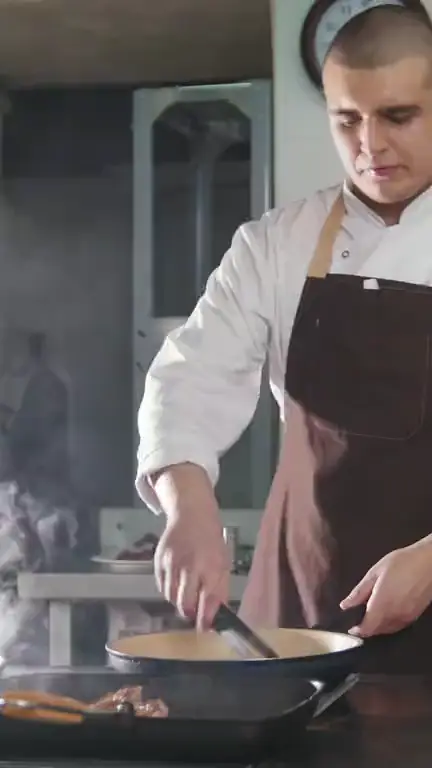

Cooking · Illustration
CookingIllustration
Field reporter · Illustration
Field reporterIllustration
Talking to camera · Illustration
Talking to cameraIllustration
Illustration (stock video), not VimeoClip output · Storyblocks.

Field reports, cooking, podcasts

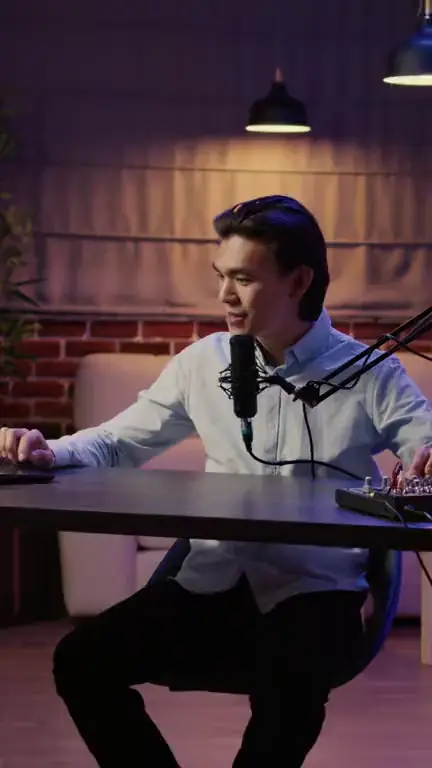
Stock footage from Storyblocks, to show the kinds of video you can bring. These are illustrations, not clips VimeoClip made.

  • Field reporter · Illustration
    Field reporterIllustration

    Field reporter

    Illustration (stock video), not VimeoClip output · Storyblocks
  • Cooking · Illustration
    CookingIllustration

    Cooking

    Illustration (stock video), not VimeoClip output · Storyblocks

  • Podcast host at the mic · Illustration
    Podcast host at the micIllustration

    Podcast host at the mic

    Illustration (stock video), not VimeoClip output · Storyblocks

What differs from a talking video

Slides and screens stay in the frame

The Screencast layout measures how much of the frame width the content takes, then picks an arrangement from that number.

  • From 50% to 85% wide: the content sits above the presenter.
  • Wider than 85%: the full width is kept, because the presenter is already on top of the content.
  • Narrower than 50%, such as a corner logo: the layout stays as it was.

A webcam in the corner of the screen

OBS recordings often have the webcam in one corner. The Inset layout lifts the webcam box into its own band, so learners see the screen and the teacher together and never the same content twice.

The lesson stays in order

The Summary flow joins the main steps into one video in their original order. The Tutorial preset makes a series of 30–59 second clips and only splits where an idea is complete.

  • A job with no length set uses about 30–60 seconds for the tutorial genre.
  • The Explainer preset divides a video by connected ideas.

Titles about what is on screen

When at least a quarter of a clip is screen content, three frames from that stretch and the words of the clip go to the model to rewrite the hook and title. The title then names the step being shown, in place of the topic of the whole video.

What teachers tend to use

Captions

The dashboard lists 15 caption languages, and captions can be translated into another language.

See captions

Clipping

Choose the number of clips and their length, or type what to look for in the lesson.

See how clipping works

Dubbing

Take a lesson into 31 languages. Needs an ElevenLabs key.

See dubbing

Good to know first

  • The Screencast layout and the title rewrite need a model that can read images. Sample frames of the video are sent to that model.
  • When Gemini checks for on-screen content, the video file is uploaded to Gemini. If a lesson must stay private, use your own AI endpoint.
  • Slides full of small text can stay hard to read in a vertical frame. In that case choose the 16:9 ratio for the job.
  • Review clips before using them in class: the AI can miss a step, and formulas or figures need checking by the teacher.
  • Dubbing needs an ElevenLabs key and is enabled by an admin.
  • Each job uses credits based on the length of the source video. A new account can start with 0 credits.
  • The footage on this page is stock video from Storyblocks, shown as an illustration, not VimeoClip output.

Try it on one of your lessons

Paste a video link to start.